


MANAGING YOUR EMAIL QUARANTINE
听
What do you need to know before you begin?
- Messages that are quarantined as high confidence phishing or malware are not displayed in the email quarantine.
- Quarantined email messages are messages analyzed听 and categorized as听Potential Spam听or as听Bulk Mail.
- Messages will be automatically deleted from quarantine after 30 days if no action is taken.
- Messages can be released directly from the end-user spam notification daily emails.
- To view quarantied emails at any time, open the quarantine page directlyby visting听 .
Use user spam notifications: to release and report quarantined messages
An end-user spam notification contains the following information for each quarantined message:
-
Sender: The send name and email address of the quarantined message.
-
Subject: The subject line text of the quarantined message.
-
Date: The date and time (in UTC) that the message was quarantined.
-
Block Sender: Click this link to add the sender to your Blocked Senders list. For more information, see听.
-
Release: For spam (not phishing) messages, you can release the message here without going to Quarantine the Security & Compliance Center.听 To ensure the sender is not quarantined in the future you can add the user to your safe sender list once released from quarantine.听 For more information see Prevent Trusted Senders From Being Blocked
-
Review: Click this link to go to Quarantine in the Security & Compliance Center, where you can (depending on why the message was quarantined) view, release, delete or report your quarantined messages.听
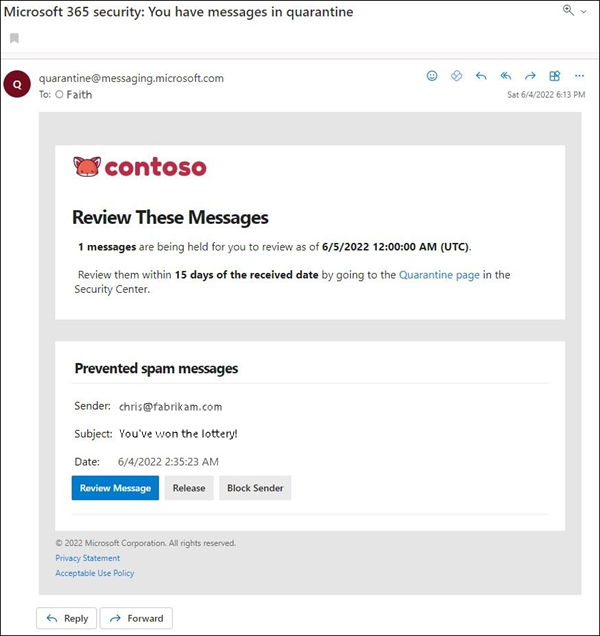
听
View your quarantined messages: Security and Compliance Center
-
In the Security and Compliance Center, go to听Threat Management听>听Review听>听Quarantine.
-
You can sort the results by clicking on an available column header. Click听Modify columns听to show a maximum of seven columns. The default values are marked with an asterisk (*):
-
Received*
-
Sender*
-
Subject*
-
Quarantine reason*
-
Released?*
-
Policy type*
-
Expires*
-
Recipient
-
Message ID
-
Policy name
-
Size
-
Direction
When you're finished, click听Save, or click听Set to default.
-
-
To filter the results, click听Filter. The available filters are:
-
Expires time: Filter messages by when they will expire from quarantine:
-
Today
-
Next 2 days
-
Next 7 days
-
Custom: Enter a听Start date听and听End date.
-
-
Received time: Enter a听Start date听and听End date.
-
Quarantine reason:
-
Bulk
-
Spam
-
Phish
-
To clear the filter, click听Clear. To hide the filter flyout, click听Filter听again.
-
-
Use听Sort results by听(the听Message ID听button by default) and a corresponding value to find specific messages. Wildcards aren't supported. You can search by the following values:
-
Message ID: The globally unique identifier of the message. If you select a message in the list, the听Message ID听value appears in the听Details听flyout pane that appears. Admins can use听听to find messages and their corresponding Message ID values.
-
Sender email address: A single sender's email address.
-
Recipient email address: A single recipient's email address.
-
Subject: Use the entire subject of the message. The search is not case-sensitive.
After you've entered the search criteria, click听
 听Refresh听to filter the results.
 -
After you find a specific quarantined message, select the message to view details about it, and to take action on it (for example, view, release, download, or delete the message).