


PREVENT TRUSTED SENDERS FROM BEING BLOCKED
Ìý
By adding email addresses and domain names that you trust to the Safe Senders List, you instruct Outlook that messages from those sources are never to be considered as junk. If you belong to mailing lists or distribution lists, you can add these names to your Safe Recipients List.
Microsoft Outlook PC Client Instructions
To add a person to the Safe Senders List, click a message from the sender, and then clickÌýHome. In theÌýDeleteÌýgroup, clickÌýJunk, and then clickÌýNever Block Sender.

To add an email address or domain to the Safe Recipients List, click a message from the sender, and then clickÌýHome. In theÌýDeleteÌýgroup, clickÌýJunk, and then clickÌýNever Block this Group or Mailing List.
If you don’t have a message from the person, you can still manually add email addresses or domains to these lists by doing the following:
-
ClickÌýHome.
-
In theÌýDeleteÌýgroup, clickÌýJunk, and then clickÌýJunk Email Options.
-
Do one of the following:
-
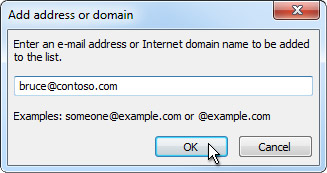
To add safe senders, on theÌýSafe SendersÌýtab, clickÌýAdd.
-
To add safe recipients, on theÌýSafe RecipientsÌýtab, clickÌýAdd.
-
-
In theÌýEnter an email address or Internet domain name to be added to the listÌýbox, enter the name or address that you want to add. For example, you can add:
-
a specific email address, such as someone@example.com
-
an Internet domain, such as @example.com, or example.com
-
-
ClickÌýOKÌýand repeat for each entry that you want to add.
-
If you want allÌýContactsÌýto be considered safe senders, select theÌýAlso trust email from my ContactsÌýcheck box on the Safe Senders tab.
-
Some people whom you correspond to might not be listed in your Contacts. If you want all such people to be considered as safe senders, select theÌýAutomatically add people I email to the Safe Senders ListÌýcheck box.
-
If you have existing lists of safe names and addresses, you can move that information into Outlook. ClickÌýImport from FileÌýand browse for the list file that you want. To create a file that uses your current list, clickÌýExport to FileÌýand then specify where you want the new file saved.
-
To change a name on either list, click the name that you want to change and then clickÌýEdit. To remove a name, click the name that you want and then clickÌýRemove.
-
If you are using a Microsoft Exchange Server account, all of the names and email addresses that are in your organization's address bookÌý— also known as the Global Address ListÌý— are automatically considered safe.
Outlook on the Web
Note: Mac Outlook users must use outlook on the webÌýÌý
-
ÌýGo toÌý and select the outlook application.ÌýÌý

-
At the top of the page, selectÌýSettings
 Ìý>ÌýMail.
 -
UnderÌýOptions, selectÌýBlock or allow.
-
To add an entry toÌýSafe senders and recipients, enter the email address or domain that you want to mark as safe in theÌýEnter a sender or domain hereÌýtext box, and then press Enter or select theÌýAddÌýiconÌý
 Ìýnext to the text box.
-
For example, to mark all email from addresses that end in contoso.com as safe, enterÌýcontoso.comÌýin the text box.
-
To mark a specific person as safe, enter that person's full email address. For example, to mark all messages from KatieJ@contoso.com as safe, enterÌýKatieJ@contoso.comÌýin the text box.
-
-
(Optional) Select theÌýTrust email from my contactsÌýcheck box to treat email from any address in your contacts folders as safe.
- SelectÌýSaveÌýto save your changes.
RemoveÌýaÌýSenderÌýorÌýDomain FromÌýtheÌýSafe Senders List
-
To remove an entry fromÌýSafe senders and recipients, select the entry and selectÌýRemove.
-
SelectÌýSaveÌýto save your changes.