


 听> Mail > Layout > Email signature.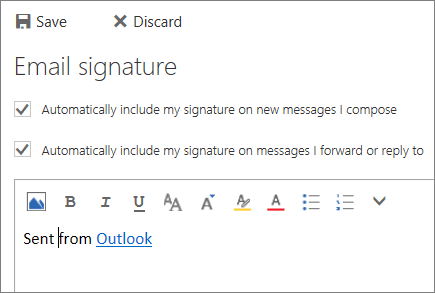


 Scheduling assistant听to see everyone鈥檚 free/busy times (Exchange users).听
 Add Skype meeting听if you want people to be able to call in.听
- Select听New > Email message.听
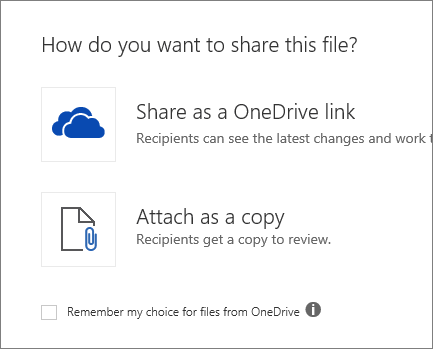
- Select听Attach.听
- Choose which files to share and select听Next.听
- Select听Share as a OneDrive link.听
- To share a file on your C: drive:
Select听Upload and share as a OneDrive linkto upload the file to OneDrive and share the link.
Block or allow (junk email settings)
Use the Block or Allow settings to help control unwanted and unsolicited email messages by creating and managing lists of email addresses and domains that you trust and those that you don鈥檛.
Safe senders and recipients
Safe senders are people and domains you always want to receive email messages from. Safe recipients are recipients that you don't want to block, usually groups that you鈥檙e a member of. Messages received from any email address or domain in your safe senders and recipients list are never sent to your Junk Email folder.
Add a sender or a domain to the safe senders list
听
-
Sign in to Outlook Web App. For help, see听.
-
At the top of the page, select听Settings
 听>听Mail.
 -
Under听Options, select听Block or allow.
-
To add an entry to听Safe senders and recipients, enter the email address or domain that you want to mark as safe in the听Enter a sender or domain here听text box, and then press Enter or select the听Add听icon听
 听next to the text box.
-
For example, to mark all email from addresses that end in contoso.com as safe, enter听contoso.com听in the text box.
-
To mark a specific person as safe, enter that person's full email address. For example, to mark all messages from KatieJ@contoso.com as safe, enter听KatieJ@contoso.com听in the text box.
-
-
(Optional) Select the听Trust email from my contacts听check box to treat email from any address in your contacts folders as safe.
- Select听Save听to save your changes.
Remove a sender or domain from the safe senders list
-
To remove an entry from听Safe senders and recipients, select the entry and select听Remove.
-
Select听Save听to save your changes.
Blocked senders
Blocked senders are people and domains you don't want to receive email messages from. Messages received from any email address or domain listed in your blocked senders list are sent directly to your Junk Email folder.
Add a Sender or domain to the blocked senders list: Outlook Web access
-
At the top of the page, select听Settings
听>听Mail. -
Under听Accounts, select听Block or allow.
-
To add an entry to听Blocked senders, enter the email address or domain that you want to block in the听Enter a sender or domain here听box, and then press听Enter听or select the听Add听icon听
听next to the text box.-
For example, to block all email from addresses that end in contoso.com, enter听contoso.com听in the box.
-
To block a specific person, enter that person's full email address. For example, to block all messages from KatieJ@contoso.com, enter听KatieJ@contoso.com听in the box.
-
-
(Optional) Select the听Don鈥檛 trust email unless it comes from someone in my Safe Senders and Recipients list or local senders听check box to treat all email as junk unless it comes from someone included in your Safe Senders and Recipients list or local senders.
-
Select听Save听to save your changes.
Remove a sender or domain in the blocked senders list
-
To remove an entry from your听Blocked senders听list, select the entry and select听Remove..
-
Select听Save听to save your changes.
听
Email Encryption
淫妻社 has implemented an email encryption service for communications containing sensitive information.听 All external university correspondence (sent to addresses other than those at utoledo.edu) containing PHI, SSNs, Credit Card numbers or other sensitive personal information should be encrypted prior to transmission (see UT Electronic Mail Services Policy).听 To encrypt and email follow one of the methods below听
1. Include the phrase [encrypt] in the subject line of the email (the brackets [ ] must be used to force the encryption).

2. Select the options tab at the top of your email message.听 select the encrypt button
and select Encrypt-Only
听
听